

  |
 |
 |
 |
 |
 |
 |
 |
 |
Starter Guide for Windows® 11 IoT Enterprise |
||||
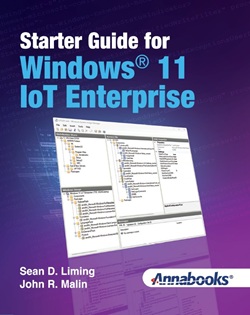 |
By Sean D. Liming and John R. MalinWindows® 11 IoT Enterprise is a special version of Windows 11 designed for OEMs to build Embedded Systems. To help to create custom images, the Windows® System Image Manager (SIM) tool allows PC Manufacturers, IT Managers, and IoT/Embedded Developers to automate the installation of Windows operating systems. SIM allows developers to install applications, device drivers, and Windows updates along with the Windows operating system. The ability to automate operating system installation helps to remove any human error that can occur with manual installation. The ability to maintain and support many platforms over a long life-cycle is also an important asset in today’s ever-changing technology. To perform all these tasks, a solid workflow to develop the image from the ground up is important. Updated Development Workflow – A development process that has been in use since Windows XP Embedded and evolved over the different Windows Embedded/IoT releases. The development workflow provides the best-known steps to create and maintain a custom image using System Image Manager. Lock down – Security is becoming more paramount in a globally connected world. Three chapters break down the different features to lock down a system: shell interface, filters, and built in security features. Synchronous command scripts – SIM doesn’t have a setting for everything. The downloads for the book contain some of the more popular scripts for custom settings such as sticky keys, network IP setup, hide the taskbar, and visual effects. Other tools – the book covers the Shell Launcher, UWF, display, audio, and Keyboard Filter utilities from Annabooks, as well as, other tools for partitioning disks and setting Group Policy. New Project Template - Introducing a new project template that addresses the basic items that go into a custom Windows operating system. There are 15 chapters with hands-on exercises to focus on the workflow and specific features. The final chapter pulls all the topics together to walk through the workflow to create a weather station device that sends data to Azure IoT Central. |
|||
|
Book DetailsPrinted Edition
|
|
||
Software and Hardware RequirementsDevelopment system with Windows® 11 Windows ADK for
Windows Windows 11 and WinPE Add-on
|
Downloads:Book Files - Zip file contains files for use with exercises.  |
|||
| |
|
|||
Table of Contents: |
||||
| 1
START HERE 1.1 WINDOWS 11: HERE WE ARE AGAIN! 1.2 INTEL ARCHITECTURE ONLY, NO ARM 1.3 WINDOWS XP EMBEDDED AND WINDOWS EMBEDDED STANDARD 7 1.4 WHAT IS NOT WORKING, STILL NOT WORKING, NEW PROBLEMS, AND A REQUEST 1.5 ABOUT THE BOOK: WINDOWS IS NOT THE CRITICAL PATH 1.6 DEVELOPMENT MACHINE AND SOFTWARE REQUIREMENTS 1.7 TARGET HARDWARE REQUIREMENTS: CHOOSE THE CORRECT TARGET HARDWARE THAT ADDRESSES PERFORMANCE AND SECURITY 1.8 THE LICENSE AND ACTIVATION STORY 1.8.1 Getting Signed Up with the Customer License Agreement(CLA) 1.8.2 Runtime key and Activation 1.9 THREE THINGS TO KEEP IN MIND – DON’T SAY I DIDN’T WARN YOU 1.9.1 Application Development – Go with .NET 10 or higher, UWP IS DEAD! 1.9.2 Windows is not for Everyone – Linux versus Windows 1.9.3 Microsoft’s Manufacturing Guide versus the My Recommended Workflow 11 1.10 OTHER RESOURCES 1.11 SUMMARY: STAY ON THE RIGHT PATH 2 PRODUCT SPECIFICATION 2.1 PROJECT INQUIRY DRIVES THE SYSTEM ARCHITECTURE 2.2 DERIVING A SPECIFICATION 2.3 SUMMARY: PLAN AHEAD 3 TOOLS AND SYSTEM SETUP 3.1 EXERCISE 301: INSTALLATION OF THE ADK WITH SIM OPTION 3.2 EXERCISE 302: CREATE THE DEVELOPMENT FOLDER AND SUBFOLDERS 3.3 EXERCISE 303: CREATE CATALOG 3.4 EXERCISE 304: DOWNLOAD BOOK FILE RESOURCES 3.5 SUMMARY: READY TO GO 4 WINDOWS IOT DEVELOPMENT WORKFLOW 4.1 DEVELOPMENT WORKFLOW AND ITERATION 4.2 THE BASICS PART 1: GATHER ITEMS FROM TARGET INSTALLATION 4.3 EXERCISE 401: CAPTURE THE DEVICE DRIVERS 4.4 WINDOWS SYSTEM IMAGE MANAGER (SIM) INTERFACE OVERVIEW 4.5 INSTALLATION PASSES AND THE ANSWER FILE 4.6 COMPONENTS AND THE PASSES: PRESET INSTALLATION ANSWERS 4.7 THE DISTRIBUTION SHARE 4.7.1 $OEM$ Folders 4.7.2 Out-of-box Drivers 4.7.3 Packages 4.8 THE BASICS PART 2: CREATE DISTRIBUTION SHARE AND ANSWER FILE 4.9 EXERCISE 402: CREATE AND SET UP THE DISTRIBUTION SHARE 4.10 EXERCISE 403: CREATE A NEW ANSWER FILE 4.11 LOOK INSIDE THE ANSWER FILE 4.12 EX403.XML FILE REUSE AND FUTURE EXERCISES 4.13 THE BASICS PART 3: PASS 7 SYNCHRONOUS COMMANDS 4.13.1 Other Pass 7 Synchronous Commands Scripts for Either Answer File 4.13.2 Utilities from Annabooks 4.14 THE LIMITS OF SIM 4.15 THE BASICS PART 4: TEST THE BASICS 4.16 EXERCISE 404: CREATE THE BOOTABLE USB FLASH DISK USING RUFUS 4.17 EXERCISE 405: BUILD THE CONFIGURATION SET, ADDRESS OUT-OF-BOX DRIVER ISSUE, AND INSTALL THE IMAGE 4.18 ERROR DURING INSTALLATION 4.19 HYPER-V 4.20 MULTIPLE PROJECTS 4.21 SYSPREP PHASE – YOU MUST SYSPREP FOR MANUFACTURING!!!!!! 4.21.1 Sysprep Command 4.21.2 Audit Mode for Baseline Images 4.21.3 Yes, You Must Sysprep 4.22 EXERCISE 406: CREATE A SYSPREP UNATTENDED ANSWER FILE AND RUN SYSPREP 4.23 EXERCISE 407: CAPTURE, APPLY, AND FFU 4.24 CUSTOMIZATION PHASE 4.25 LOCKDOWN PHASE: ARCHITECT THE OS 4.26 MASTER IMAGE PHASE: Q/A AND ACTIVATION CONSIDERATIONS 4.27 EXERCISE 408: VOLUME ACTIVATION MANAGEMENT TOOL (VAMT) 4.28 SUMMARY: FOLLOW THE FLOW 5 UPDATED INSTALL.WIM PHASE 5.1 EXERCISE 501: UPDATING THE INSTALL.WIM 5.2 WUSA.EXE ALTERNATIVES TO MSU INJECTED INTO INSTALL.WIM 5.3 SSU FOR WINDOWS 10 5.4 EXERCISE 502: ADDING FEATURES-ON-DEMAND (FOD) 5.5 WARNING: PRODUCT LIFE CYCLE 5.6 EX503: GENERATE A NEW CATALOG FILE 5.7 WINDOWS INSTALLATION DISK SPACE REQUIREMENTS 5.8 SUMMARY: SPEEDING UP THE ITERATION PROCESS. 6 LANGUAGE PACKAGE INTEGRATION 6.1 HISTORY: THE BIG PROJECT GOING FROM WINDOWS XP TO WINDOWS 7 AND NOW WINDOWS 10 AND 11 6.2 ISO 639 STANDARD, LIP VERSUS LXP, AND THE IMPORTANT DVD ISOS 6.3 DISM AND POWERSHELL CMDLETS 6.4 RESEARCH RESULT 1: BASIC ANSWER FILE AND INSTALLATION MEDIA 6.5 RESEARCH RESULT 2: INJECTING INTO THE INSTALL.WIM – THINK LONG TERM! 6.6 RESEARCH RESULT 3: LANGUAGE PACK CAB FILE INSTALL VERSUS LP DOWNLOAD 6.7 RESEARCH RESULT 4: MULTIPLE USER ACCOUNTS 6.8 EXERCISE 601: UPDATING THE INSTALL.WIM WITH LANGUAGE PACKAGES. 6.9 SUMMARY: GOING GLOBAL 7 SYSTEM PERFORMANCE 7.1 CHOICE OF BOOT MEDIA: EMMC VERSUS M.2 7.2 UNIFIED WRITE FILTER EFFECTS ON SYSTEM PERFORMANCE 7.3 CHOICE OF APPLICATION TYPE 7.4 OPTIMIZE .NET APPS WITH NGEN.EXE AND CROSSGEN.EXE 7.5 EXERCISE 701: CREATE A CUSTOM POWER PLAN 7.6 PERFORMANCE OPTIONS AND REGISTRY KEYS 7.7 WINDOWS SERVICES 7.8 SCHEDULED TASKS 7.9 SUMMARY: MAKE THE SYSTEM AN APPLIANCE AND TWEAK PERFORMANCE 8 REAL-TIME SUPPORT 8.1 WHAT IS REAL-TIME? 8.1.1 Hard Real-Time, Soft Real-Time, and Determinism 8.2 SPLIT SYSTEM 8.3 INTERNAL WINDOWS SOFT REAL-TIME SUPPORT- NEW 8.4 TENASYS® INTIME® FOR WINDOWS® 8.5 SUMMARY: REAL-TIME APPLICATIONS ARE POSSIBLE 9 FOOTPRINT REDUCTION 9.1 THE VALUE OF COMPONENTIZATION 9.2 IMAGE SIZE COMPARISON 9.3 THE COMPLEXITY OF COMPONENTIZATION 9.4 HOW DID WE GET HERE? 9.5 REDUCTION POWERSHELL SCRIPT FOR CORE OS 9.6 MANAGING FEATURES-ON DEMAND PACKAGES 9.7 OTHER DISK IMAGE SIZE TRICKS 9.7.1 Disable Features 9.7.2 Turn off Hibernation and Disable Virtual Memory 9.7.3 Remove a copy of the Windows Custom Installer 9.7.4 Compact OS 9.7.5 Clean up Windows Update 9.7.6 Remove WinRE Partition 9.7.7 Removing Edge 9.8 EXERCISE 901: MINIMIZING THE WINDOWS 11 IOT ENTERPRISE LTSC 2024 FOOTPRINT 9.9 WINDOWS STORE: ADDING APPS INTO THE IMAGE 9.10 SIZE MATTERS |
10 LOCKDOWN PART
1: USER EXPERIENCE |
|||
|
|
||||
|
|
||||
|
Please review our refund policy before buying. |
||||
|
|
||||
  |